Keep the architecture fixed
Protect walls, windows, room proportions, and fixed finishes before changing light or furnishings.
Uploaded Images
No images yet
Get started with these simple steps
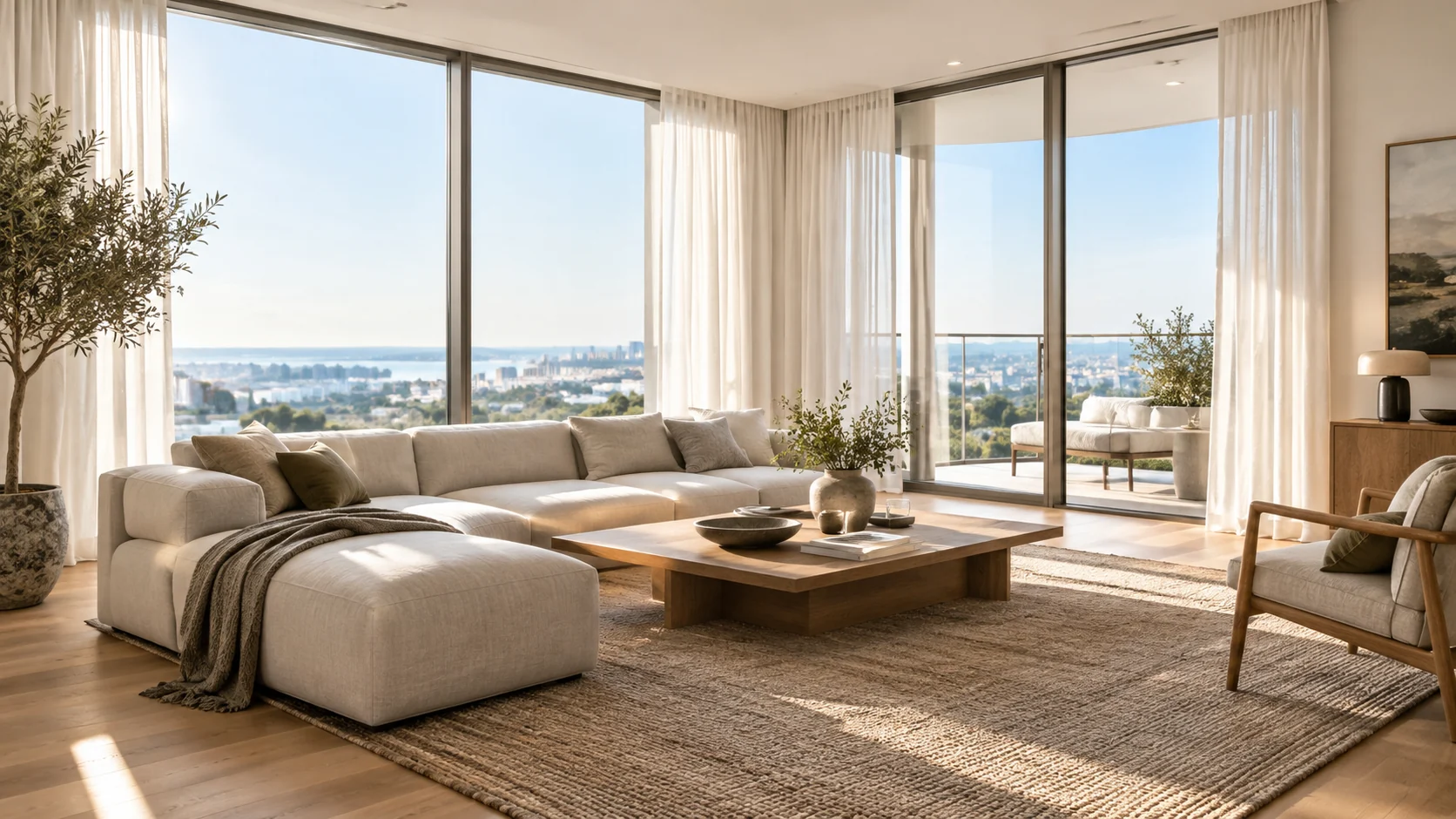
Real Estate Photo Editor
A listing photo has one job: help a buyer understand the room quickly. This workflow can lift a dark interior, simplify distracting clutter, and create a preview of how a space might feel with furniture.
The safest edits preserve walls, windows, doors, flooring, and fixed architecture. Ask for a specific lighting or styling change, then verify that the improved image still represents the property honestly.
Furnishing previews are illustrative. Do not present an AI-added object, view, or finish as a real fixture when it could mislead a buyer. Follow local advertising rules and keep original photography available for verification.
Real estate photo workflow
Use a clear interior photograph to improve daylight, remove visual noise, and test a furnished direction while keeping the architecture recognizable.
Protect walls, windows, room proportions, and fixed finishes before changing light or furnishings.
Ask for brighter exposure, cleaner shadows, and less visual noise without claiming to repair structural problems.
Create an illustrative preview of a room scheme before a photographer or stager is booked.
Reuse one consistent prompt structure across a property so the listing feels visually coherent.
Use the uploaded interior photo as the reference. Preserve the room layout, walls, windows, doors, flooring, and all fixed architectural details. Brighten the scene with balanced natural daylight, reduce muddy shadows, keep realistic highlights, and remove only small distracting objects. Keep a natural real-estate photography look.
Keep the room structure and camera angle unchanged. Add a restrained furnishing preview with a low linen sofa, oak coffee table, wool rug, and one olive tree. Use warm neutral materials, believable scale, soft daylight, and realistic contact shadows. Do not alter windows, walls, flooring, or the view outside.
Preserve the building form, roofline, windows, landscaping, and camera perspective. Improve the exposure, make the lawn and walkway look tidy, reduce distracting visual clutter, and keep a natural sky and realistic shadows. Do not add a different property, change the architecture, or invent a view.
Example uses
Make a first-pass image clearer before sending the final property set to a photographer or editor.
Create cleaner room previews for a rental listing while keeping the actual layout visible.
Explore a furnishing direction for a vacant room before ordering furniture or props.
Prepare poster, social, thumbnail, and presentation concepts where copy placement and composition both matter.
Adapt one creative idea into multiple languages, ratios, and channel-ready variations.
Workflow
Use a photo that shows the room as it exists. Do not start with an image that hides a material defect.
List the walls, windows, floor, view, and camera angle that must stay unchanged.
Use the result as a visual draft and disclose virtual furnishing where the platform or law requires it.
 AI Product Photo Editor for Clean Ecommerce ImagesEdit product photos with AI: clean backgrounds, realistic shadows, better lighting, and campaign-ready scenes from one upload.
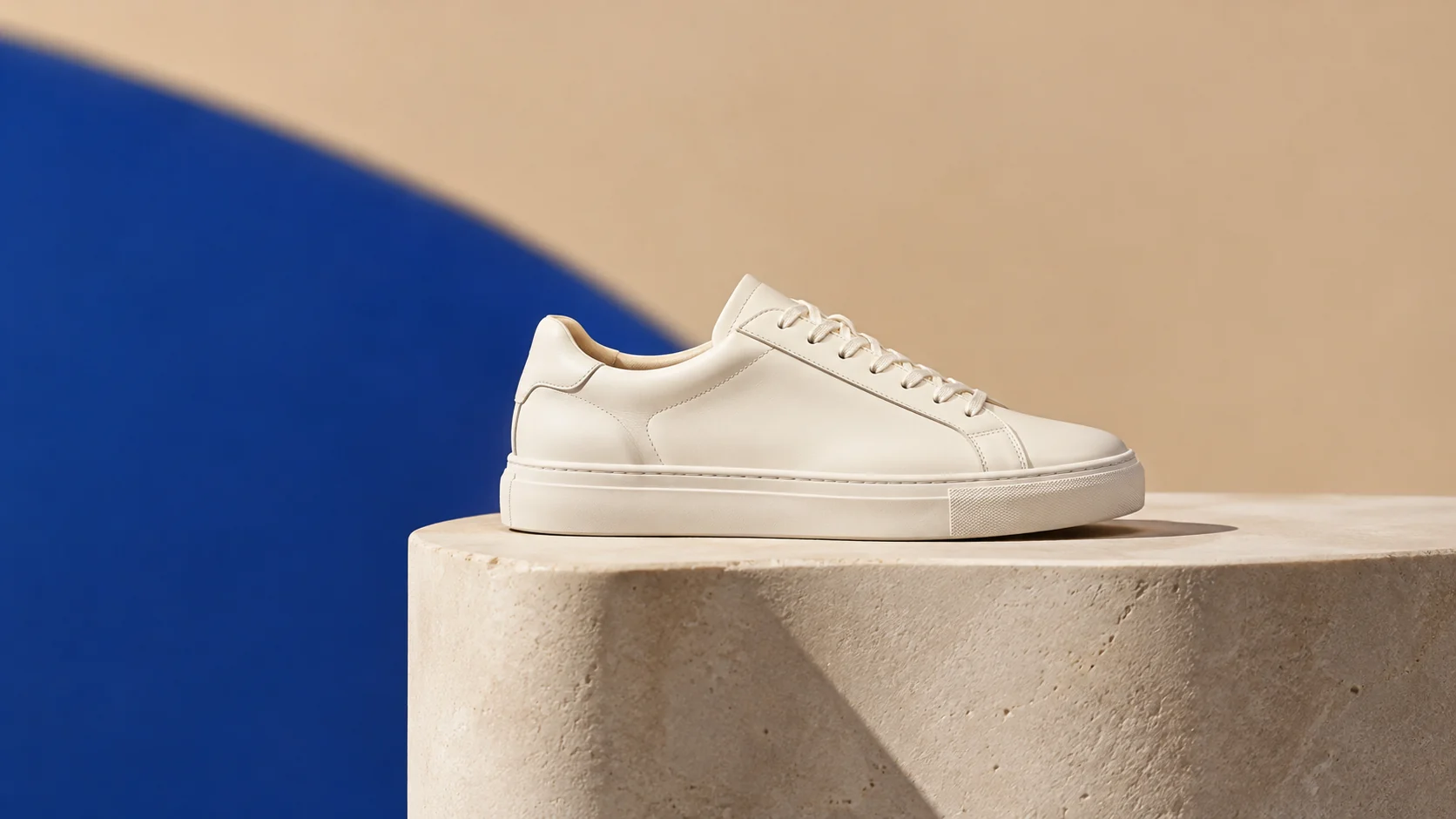 AI Ecommerce Background Generator for Product ListingsReplace cluttered backgrounds with clean studio scenes, seasonal sets, and platform-ready product visuals.
 AI Video Reference Generator for Motion and Scene ControlUse uploaded video and image references to guide a new AI shot while keeping motion, mood, and framing clear.
Ready when the idea is clear
Keep the path short: generate a draft, move promising prompts into the workspace, then upgrade only when a batch needs more credits.